Blogger Widgets

About Ash Hacker

My photo
I am a social-techno-learner which believes in its own efficiency first and then implements with the suggestions of my strong and enthusiastic Team which helps me takes everything into its perfection level.
Showing posts with label Others. Show all posts

Sunday, 27 May 2012

Top Five Web Design Tools

Just like in most other professions, a web designer’s set of tools is what brings a concept into fruition. There are many applications available to our disposal, but there are some that just stand out from the crowd. The tools in this article are what’s regarded as the most popular tools used for web design.
In this article, you’ll find the five web design tools that garnered the most votes.

5. Fireworks


Adobe Fireworks is a commercial raster and vector graphics editor hybrid from Adobe that’s available for the Mac and Windows operating systems. Designed specifically for web designers (unlike Photoshop), Fireworks brings you a plethora of tools and options that make full web layout prototyping a breeze.
Among its notable features are: "slices" for slicing and dicing a design mockup into HTML/CSS for rapidly creating prototypes (though you should avoid using auto-generated source code for the end-build), the ability to package an entire site design as a PDF with clickable components for interactive and impressive site prototypes, and optimization tools for making your web graphics as lightweight as possible.

4. Dreamweaver


Adobe Dreamweaver is a commercial application for web development that’s available for the Mac and Windows operating systems. Its featured-packed suite of tools and options include: syntax highlighting and very smart Code Hinting, a built-in FTP client, project management and workflow options that make team work effortless, and Live View – which shows you a preview of your source code. Dreamweaver tightly integrates with other popular Adobe products such as Photoshop, allowing you to share Smart Objects for quick and easy updating and editing of graphics components. 

3. Panic Coda


Panic Coda is a shareware web development application for the Mac OS X operating system. It seeks to reduce the amount of applications (such as an FTP client, CSS editor, a version control system, etc.) you need to develop websites and to improve your team’s workflow. Coda’s one-window web development philosophy uses a tabbed interface for text editing, file transfers, SVN, CSS, and even "Books" which embeds web books that are searchable (it comes with The Web Programmer’s Desk Reference but you can add your own).
It’s simple and intuitive interface allowed Coda to garner the Apple Design Awards Best Mac OS X User Experience in 2007.

2. Photoshop


Adobe Photoshop is a very popular commercial graphics editor available for the Mac and Windows operating system. Created for professional photographers and designers, it is the ideal application for manipulating images and creating web graphics. Photoshop has all the necessary tools and options you need such as: Filters – which automatically adds effects to your image or a selected section of your image, extensibility and automation with Brushes, Actions and Scripting, and workflow enhancement features like Layer Comps and the Revert option.

1. Firebug


Firebug is a free, open source in-browser web development tool for the Firefox web browser. It’s many features include: on-the-fly HTML and CSS editing for tweaking or debugging, a Console for logging, analyzing and debugging JavaScript, and an intuitive Document Object Model (DOM) inspection tool to help you quickly see how the elements of a web page relates to one another.
Firebug’s popularity is so immense it’s one of the few Firefox extensions that have its own extensions (like YSlow and FirePHP)!

Notable mentions

Here are other tools that were voted on that are worth a quick mention.

Saturday, 19 May 2012

Recover your deleted files...

If you have lost important files from your hard drive and if you are sure that they have been deleted, don’t panic! Uneraser is simple software that can help. In this tutorial, we will see how Uneraser works. On this link you can download Uneraser.
For example, I delete movie file on Local Disk (E:) , how to recover movie file?. It is simple

1. Run Uneraser , then select wizard , as shown below


2. When the wizard appears select “Do a lost files scan”, then click Next , as shown below


3. Select partition , where is deleted data, then click Next


4. Uneraser find my deleted movie


5. Now, just save your recover file, as shown below

Use Keyboard As Mouse

Looking cool computer tricks? Here is something that should pique your interest: Use Keyboard As Mouse, On Screen Keyboard and Transform your Windows XP in to Windows 7.

Use Keyboard As Mouse

When mouse isn’t working properly , this trick can be very helpful. To activate mouse keys all you do is press Alt+Left shift key + NumLock and click OK or press enter .

Use the Numerical pad for controlling the mouse pointer.
5 is for click.
+ is for double click
- for right click.

On Screen Keyboard

On screen keyboard is one of the coolest windows features that displays a virtual keyboard on the computer screen that allows people with mobility impairments to type data by using a pointing device or joystick..


To use it go to start-> run and type osk

Thursday, 17 May 2012

how to shut down your computer using your cell phone

Hi, do you want to learn a trick about “how to shut down your computer using your cell phone”. Are you always hiring the best way? Then, today you learn this trick easily in a simple way as just need to look carefully this step to step tutorial about “how to shut down your computer using your cell phone”.
Note: you can complete this trick in every operating system but, here we are representing this tutorial in “Windows 7 Professional”.
So let’s start, first open notepad as go to-> Start- All Programs- Accessories- Notepad. You can also open it in other way as go to-> Start and click on run and there type- “notepad”. Then, you will get notepad (simple editor) in front of window screen. Then, type in notepad “shutdown –s” and save this file anywhere where you want but, save with file as named “shutdown.bat” in your operating system. Illustrated at below picture-


After above process, the second step is to create your “Gmail” account or other account like yahoo for email id but, here showing Gmail. If you already have a Gmail account means having email id then, forget this step and if not as for this just search on internet as type in URL box- “gmail.com” and hit enter button from your keyboard. Then you will get, see image below-

On this page, click on “Create an Account” as shown above. Then, you will get a form where you need to fill your details like first name, last name, birth date and many more as follow instructions carefully and you will get you unique email id through that page.
Now, the next step is to create an email for Microsoft outlook (MS-outlook) and also configure some settings. So, just open MS outlook as go to-> Start – All Programs – Microsoft Office and click on Microsoft Office Outlook (any version like 2003, 2007, 2010). If you don’t have MS outlook in your operating system then, you can purchase this software online. Here in this tutorial we are showing MS-outlook 2003.

After open, go to-> Tools – Email Accounts… Click on Email Accounts…

So you will get this window-

Click on check box- “Add a new e-mail account” as shown as above and click next. So you get-

Click on Check box- “POP3” and click on Next >
You will get-

So, enter your name and e-mail address “email id” as you get through Gmail as illustrated whole fact above. In server Information, enter in Incoming mail server (POP3): “pop.gmail.com” and in Outgoing (SMTP): “smtp.gmail.com”. Enter you username and password also as you can enter your desired username and password. After whole click on more settings as all things are shown above, visit carefully.
In more settings, you will get this screen-

Click on Outgoing Server as will get this-

So, click on Check box as mouse indicating in upper image.
After this, click on Advanced as visit below-

In Advanced, change the value as enter in Incoming server (POP3): 995 and enter in outgoing (SMTP): 25 and click on all checkboxes and finally click on Ok button as shown above. Just do copy of above.
Then, you will get back to previous screen as then, click on next as shown below-

And finally, click on finish,
Then, go to-> Tools – Send\Receive – Send\Receive Settings – Define Send\Receive Groups (Ctrl+Alt+S). Given below-

After Click, you will get this screen-

So check your screen as do copy of above picture. In this, especially check, checkbox- Schedule an automatic send\receive every (1) minutes. And finally click on close.
Now, the last step is to manipulate our computer (ms-outlook) with text message as for this, we have to set up of rules and alerts on outlook. So, again go to-> Tools – Rules and Alerts. See image below-


Then, you will get Rules and Alerts Screen as there click on New Rule as see below-

In New Rule, you will get Rule Wizard .So, just click on check box- “start from a blank rule” and click on next as visit image below-

Now, the next step is as click on check box- “with specific words in the subject or body” and click on specific words as shown below-

Through click, you will get Search Text wizard as write- shutdown and add and click on ok button and finally click on next

As you will on next, click on check box- start application and below click on application as though click you will get an open wizard as visit below

In open wizard, open your file- “shutdown.bat” as you created and saved firstly above on a particular location.
After this, you will get this wizard again as click on next.

Again, click on next-

Click on finish

And finally click on Apply and then, on OK as shown below

So, all above process is the complete whole process to shut down your computer via cell phone in less than a minute. Now, you can open your Gmail account in cell phone and just send a text message to your Gmail account saying “shutdown” w/o quotation and you will found that your computer will be shutdown in a minute. If you are out of your city as wants to shut down your computer using your Cell phone in a minute as this is the best way. Finally, are you still thinking as How to shut down your Computer using your Cell Phone? Then, just follow this tutorial now as you will get result within hour.
We hope you like this briefly described tutorial. Just does this now…


ASH-HACKER

Friday, 9 March 2012

Change Start Menu with just One-Click


I really was fred up of the different ways to change the name of Start Menu. But finally found out a way to do that easily. Below is a Software that directly changes the name of your Start Menu. Click here to download the software utility.

Snapshot :  Simple Start Menu.
Software and start menu after change.


You just have to put your name in New Label and you're done.
Enjoy your Start Menu. $$$$$$$$$$$

Thursday, 1 March 2012

Copy Files Faster in Windows


TeraCopy – Copy your Files Faster, even from Scratched CDs

BestSoftwarestoMoveCopyFilesFasterinWindowsteracopy Softwares to Move, Copy Files Faster in Windows
TeraCopy is a compact program designed to copy and move files at the maximum possible speed, providing the user a lot of features. I often have to move big files and this helps me a whole lot.
  • Copy files faster. TeraCopy uses dynamically adjusted buffers to reduce seek times. Asynchronous copy speeds up file transfer between two physical hard drives.
  • Pause and resume file transfers. Pause copy process at any time to free up system resources and continue with a single click.
  • Error recovery. In case of copy error, TeraCopy will try several times and in the worse case just skips the file, not terminating the entire transfer.
  • Interactive file list. TeraCopy shows failed file transfers and lets you fix the problem and recopy only problem files.
  • Shell integration. TeraCopy can completely replace Explorer copy and move functions, allowing you work with files as usual.
Download TeraCopy – Link

ExtremeCopy – Copy Files Faster

BestSoftwarestoMoveCopyFilesFasterinWindowsExetremeCopy Softwares to Move, Copy Files Faster in Windows
ExtremeCopy is a Windows copy file utility which copy and move files and folders extremely fast and operation is simple. It includes some powerful features such as pause copy process,error recovery and so on but as easy as Windows default copy handle. Features are :
  • Copy or move your file(s)/folder(s) as usual and more efficient and more powerful
  • Save much time when you backup your files to another hard drive or USB drive or computer
  • Manage your copy task easily
Download Extreme Copy – Link

FastCopy – Fastest Copy/Delete Software on Windows

BestSoftwarestoMoveCopyFilesFasterinWindowsfastcopy Softwares to Move, Copy Files Faster in Windows
It automatically selects different method according to whether Source and DestDir are in the same or different HDD. Reading and writing are processed respectively in parallel by another thread for Diff HDD, while for Same HDD reading are processed until the big buffer fills.
When the big buffer filled, writing are started and processed in bulk because Reading/Writing are processed with no OS cache at all, other applications aren’t easy to become heavy.
Download FileCopy – Link

Talent Copy – Read & Write Files in Hard Drive Faster

talent copy write files faster Softwares to Move, Copy Files Faster in Windows
Talent Copy V, which is a totally free program, currently in beta, and is devoted entirely to Windows Vista at Seven, by which you can speed up the transfer of our files up to 3 times, restricting the same time, any gaps and noise of the HDD.
Download Talent Copy: Link
Using Talent Copy V is particularly easy, since, to take advantage of its great potential is sufficient to copy, or move our files and folders as usual, although they had by using the “Copy Paste with Talent” this in context menu, when the files are pasted into another destination.

Copy Handler – Copy and Move Files Faster and Smartly

BestSoftwarestoMoveCopyFilesFasterinWindowscopyhandler Softwares to Move, Copy Files Faster in Windows
Copy Handler is a free software for Windows systems, which allows you to take full control over the file copy and move operations. Program is highly customizable and fully integrates with the operating system.
In addition, Copy Handler offers many advanced options such as task queuing, filtering files according to specific criteria, pausing and resuming copying files operations, changing the copying parameters on the fly and in many cases also offers a significant acceleration of the entire copying files process.
Download Copy Handler – Link
Super Copy
SUPERCopyBestSoftwarestoMoveCopyFilesFasterinWindows Softwares to Move, Copy Files Faster in Windows
Super Copy provides a very robust way to copy files in Windows. Super Copy does not prompt you for more information once the copy has started; all options are specified beforehand. This is simply a lightweight interface for XCOPY, and will not negatively affect your system’s performance.
Download Super Copy – Link

Power Copy

Power Copy provides a specialized copy environment useful for data backup and data recovery applications.
Screenshot Softwares to Move, Copy Files Faster in Windows
It gets past Windows security so you don’t need to worry about having proper permissions. Files that are physically damaged are automatically skipped and the copy process continues. On-screen alerts let you know of any issues encountered.
Download : Power Copy
Easily drag and drop files with the Windows Explorer shell extension. Use the standalone executables provided in the installation directory to launch Power Copy on another computer without having to install it.

Fix to Copy Large Files in Vista Faster

Maybe you have already encountered the strange behavior that it takes much longer to copy large files in Windows Vista than in Windows XP. The problem is caused by a new feature called Auto Tuning which is by default enabled inMicrosoft Windows Vista.
To disable Auto Tuning and speed up the copy process and avoid timeouts and disconnects do the following:
Open a command prompt and type the following: netsh int tcp set global autotuninglevel=disabled
To turn it on again: netsh int tcp set global autotuninglevel=normal
Don’t try this if you feel uncomfortable in DOS. Let me know your experience with these softwares/tricks in comments!! icon smile Softwares to Move, Copy Files Faster in Windows

Saturday, 18 February 2012

Change Blogger Mouse Cursors / Mouse Pointer / cursor cursors / Mouse Cursor for Blogger


How do I change my Blogger mouse cursor ? You should know that some people find web pages mouse pointer , cursor cursors , mouse cursor , tumblr cursors , cursors for windows 7 , mouse icon , cursor pointer , free cursor , cursor download. In this tutorial we show you how to easily change the default mouse cursor white something a little more exciting. How To Change Blogger Mouse Cursors In Easy Way.


I take the cursor image from http://www.cursors-4u.com/ and you can change it anytime depends on your festive moods.


How to Install mouse cursor in blogger blog to animated cursors

This tutorial will help you to change the mouse cursor of your blog to animated cursors. As you can see in this blog, i haved installed a dark blue 3d cursor. You can also add it in your blogspot blogs and change it according to your will.


I have to write two set of instructions for each steps, as some of you are using the default layout, and some of you are using the new layout.Backup your template before attempting this tutorial.

Step 1:


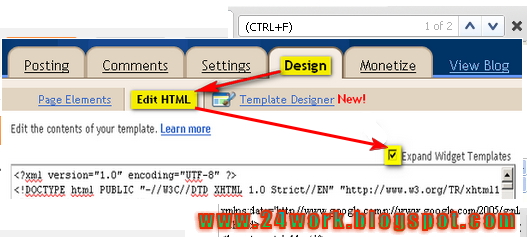
In old layout: Go to Dashboard - Design - Edit HTML - Expand Widget Templates.


In new layout: Go to Dashboard - Template - Edit Template HTML - Expand Widget Templates.


Now find (CTRL+F) this code in the template:

</head>

And immediately before it, paste this code:


<style type="text/css">body, a:hover {cursor: url(http://safir85.ucoz.com/24work-blogspot/mouse-cursor/COOL_BLUE_OUTER_GLOW_POINTER-www.24work.blogspot.c.cur), progress;}</style><a href="http://24work.blogspot.com" target="_blank" title="Blogger Widgets"><img src="http://safir85.ucoz.com/24work-blogspot/cursor-24work-10.png" border="0" alt="Blogger Widgets" style="position:absolute; top: 0px; right: 0px;" /></a>


And now click Save Template

WEL-COME

You Are Welcome Heartly.......
Blogger Widgets